Showing posts with label WebMaster Tweaks. Show all posts

Saturday, August 1, 2009

AdesDesign - Color Picker

Color Picker Software Normally when you want to use a color on the web you have to take a screen shot, then open it with PhotoShop, and then use the color picker tool. This is just a time waster when you can buy the Color Picker software for just $9.99.

Color Picker Software

AdesClrPicker is very easy to use and a must have for Web Designers, and Web Developers. With a single click of the mouse you can capture any color on your screen then output this color in HTML, RGB, C++, VB and Delphi color codes. When you are working on a project, you have to be able to refer to this color code often, and this tool allows you to have it, right at your fingertips, by capturing the last 10 colors that you used.

And for an added bonus, Ades from AdesDesign has a blog located at AdesBlog.com. He’s got great articles on web products and new technologies.
Wednesday, February 21, 2007

Complex Button RollOver/RollOut Effects woth flash MX

Complex Button RollOver/RollOut Effects
by warhero : 24 April 2005
It seems everywhere you look now has some form of complex button. Most buttons that have an animation when rolled over and an animation when you roll out are done with some form of this concept that I intend to share with you.

If you understand basic Flash concepts and just a smidgen of Actionscript, you will catch on in no time.

Here is How

Create a new Flash document.

Open up the document properties by pressing ctrl+j (cmd+j on Mac) and change the stage size to 100x100. Change the Frame Rate to 30.

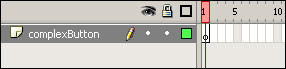
Rename layer 1 on the main timeline to complexButton. The main timeline should now look like this:


Create a new movieclip by pressing ctrl+F8 (cmd+F8 on Mac). Name it mc_complex.

Double click mc_complex in the library to edit the symbol. Select the Oval Tool(o) and make a 30x30 circle on the stage. In the properties panel set the x and y values for that circle to 0.

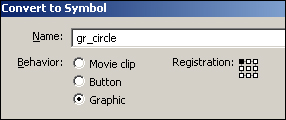
Double click the circle to select the Fill and Stroke. Press F8 to convert it to a symbol so we can tween it. Make it into a graphic symbol and name it gr_circle


Still editing the mc_complex movieclip select frame 15 and press F6. This inserts a keyframe. Resize the circle a little bigger than what is there. I went with 40x40.

Right click on any frame between the two keyframes on the timeline and select Create Motion Tween.

Create a new layer and call it actions. Insert a blank keyframe(F7) on frame 15. The timeline for mc_complex should now look like this