How Long Has Your System Been Running?
Here's how you verify system uptime:
Click Start | Run and type cmd to open a command prompt.
At the prompt, type systeminfo
Scroll down the list of information to the line that says System Up Time.
This will tell you in days, hours, minutes and seconds how long the system has been up.
Note that this command only works in XP Pro, not in XP Home. You can, however, type net statistics workstation at the prompt in Home. The first line will tell you the day and time that the system came online.Enjoy!!!
Showing posts with label Windows Tweaks. Show all posts
Showing posts with label Windows Tweaks. Show all posts
Friday, September 25, 2009
How Long Has Your System Been Running?
Tuesday, September 8, 2009
How to Change Name and Company Info after installing windows
Step 1: Start > Run > Regedit
Step 2: Find following Registry Key-
HKEY_LOCAL_MACHINE\SOFTWARE\Microsoft\Windows NT\CurrentVersion
Step 3: Double-Click RegisteredOrganization.
STEP 4: Under "Value data", type the name that you want...then click OK
STEP 5: To change the name of the registered owner, do the following:
STEP 6: Double-click RegisteredOwner
STEP 7: Under "Value data", type the name that you want...then click OK
Wednesday, March 25, 2009
Boot Your PC in STYLE
Note : I recommend making a copy of you "Boot.ini" first, just in case you do something wrong and your window is not booting, restart and when your pc is in post(the black screen) press F8 and boot in safe mode, and replace the "Boot.ini" with your backup of "Boot.ini" and it should get back to its former state.
All of us are accustomed to seeing the Windows XP logo at system startup
but how about getting a custom message at first before the logo appears?
Heres how to do it. Its easy and simple. Please don't mess it up until n unless you're DUMB enough.
Click start,then run.
Type c:\boot.ini
Erase whatever is there and copy and paste this
[boot loader]
timeout=5
default=multi(0)disk(0)rdisk(0)partition(1)\WINDOW S
[operating systems]
multi(0)disk(0)rdisk(0)partition(1)\WINDOWS="Write your message"/fastdetect
C:\="write your message"
Write whatever you want in between the quotes this will display for 5 seconds before windows starts
*if you have installed windows in any partition other than C: replace the number after the last brackets of
multi(0)disk(0)rdisk(0)partition(1)
Use
1 for c:\
2 for d:\ and so on
If you want to create more lines just write
d:\="......"
e:\="....."
After editing the file "Boot.ini" save it and restart the system to see how it goes.
Sample:
[boot loader]
timeout=10
default=multi(0)disk(0)rdisk(0)partition(1)\WINDOW S
[operating systems]
multi(0)disk(0)rdisk(0)partition(1)\WINDOWS="This PC will blow in"/fastdetect
C:\="10 seconds"
D:\="Shut it down"
E:\="Or run for your LIFE"
Try it and next time when friends comes to see your PC I bet they will be astonished.
Saturday, February 28, 2009
Get Vista Style Drive Icons in Windows XP
One of the nice little features in Windows Vista that you don't think about is the graph of drive space for your drive icons, so you can visually see at a glance how much space is used. There's no reason to upgrade for this feature, especially since some programmers created a small utility for XP that gives you the same functionality.
You'll notice the new icon looks very similar to the ones in Vista, but the more interesting addition is the new bar under the icon that gives you a tiny graph of the current drive space.
The graph will show up on most of the icon sizes other than the details view.
When your drive is running low on space the graph will turn red to indicate that you should probably stop downloading so much.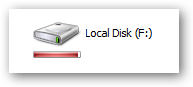
You can see in task manager that it really doesn't use all that much memory.
Download Drvicon from Sourceforge.net
http://drvicon.sourceforge.net/
Saturday, October 27, 2007
Amazing Hidden Features in XP
1. Application Secrets.
Defrag
Secret - Hidden Command Line Switch
Instructions - Go to "Start", "Run" and Type defrag c: -b to defragment the Boot and Application Prefetch information. Similar to what BootVis invokes.
Paint
Secret - Image Trails
Instructions - Open an image and hold down Shift then drag the image around to create an image trail.
Secret - 10 X zoom
Instructions - Open an image and select the magnifying glass icon. Left-click exactly on the line below the 8 X.
2. OS Secrets.
Add/Remove
Secret - Hidden Uninstall Options
Instructions - Warning: Proceed at your own risk.
Browse to C:\Windows\inf\ and make a backup copy of sysoc.inf. Then open the original file C:\Windows\inf\sysoc.inf in notepad. Go to "Edit" and select "Replace". In "Find what" type, hide and in "Replace with:" type, then select "Replace All", save and close the file. Go to the control panel, "Add/Remove", select "Add/Remove Windows Components". You will now see many more Windows components to uninstall. Do not remove anything with no label or that you do not recognize or fully understand what it does. Doing so can break certain functionality in Windows.
Control Panel
Secret - Hidden Control Panel Extensions
Instructions - Download and install Tweak UI, launch, go to "Control Panel" and check any item not selected, then "Apply" and "OK". You will now see the hidden control panel extensions.
Device Manager
Secret - Hidden Devices
Instructions - Go to the control panel, "System" icon, "Hardware" tab and select "Device Manager". Select View and Show hidden devices.
Music
Secret - Music from the Installer
Instruction - Browse to C:\Windows\system32\oobe\images\title.wma and play
Shutdown
Secret - Display Hibernate Option on Shut Down dialog.
Instructions - Go to "Start", "Turn Off Computer" and press either Shift key to change "Stand By" button to "Hibernate".
3. Game Secrets
FreeCell
Secret - Instant Win
Instruction - Hold down Ctrl + Shift + F10 during game play. Then you will be asked if you want to Abort, Retry or Ignore. Choose Abort, then move any card to instantly win.
Secret - Hidden Game Modes
Instruction - In the "Game" menu choose "Select Game". Enter -1 or -2 to activate the hidden game modes.
Minesweeper
Secret - Reveal Mines
Instructions - Minimize or close all running applications. Launch Minesweeper, then type xyzzy. Next hold down either shift key for one second. Now when you move the mouse cursor over a Minesweeper square you will see a tiny pixel in the top left corner of your desktop screen. This pixel will change to black when your mouse moves over a mine. You may need to change you desktop background to a solid color other then white or black to see the pixel.
Pinball
Secret - Extra Balls
Instructions - Type lmax at the start of a new ball to get extra balls.
Secret - Gravity Well
Instructions - Type gmax at the start of a new game to activate Gravity Well.
Secret - Instant Promotion
Instructions - Type rmax at the start of a new game to go up in ranks.
Secret - Skill Shot
Instruction - Launch the ball partially up the chute past the third yellow light bar so it falls back down to get 75.000 points. There are six yellow light bars that are worth a varying amount of points :
First: 15.000
Second: 30.000
Third: 75.000
Fourth: 30.000
Fifth: 15.000
Sixth: 7.500
Secret - Test MOde
Instructions - Type hidden test at the start of a new ball to activate Test Mode. No notification will be given that this is activated but you can now left-click the mouse button an drag the ball around.
Secret - Unlimited Balls
Instructions - Type bmax at the start of a new ball. No notificatin will be given that this is activated but when a ball is lost a new ball will appear from the yellow wormhole indefinitely. Once this is activated you will be unable to activate other secrets without restarting the game.
Solitaire
Secret - Instant Win
Instruction - Press Alt + Shift + 2 during game play to instantly win.
Secret - Draw single cards in a Draw Three game
Instruction - Hold down Ctrl + A
Subscribe to:
Comments (Atom)
